
How to use YardIQ
A short guide to running vehicle searches, checking sell-through, managing inventory, and listing parts on eBay.
Run a vehicle search
- 1
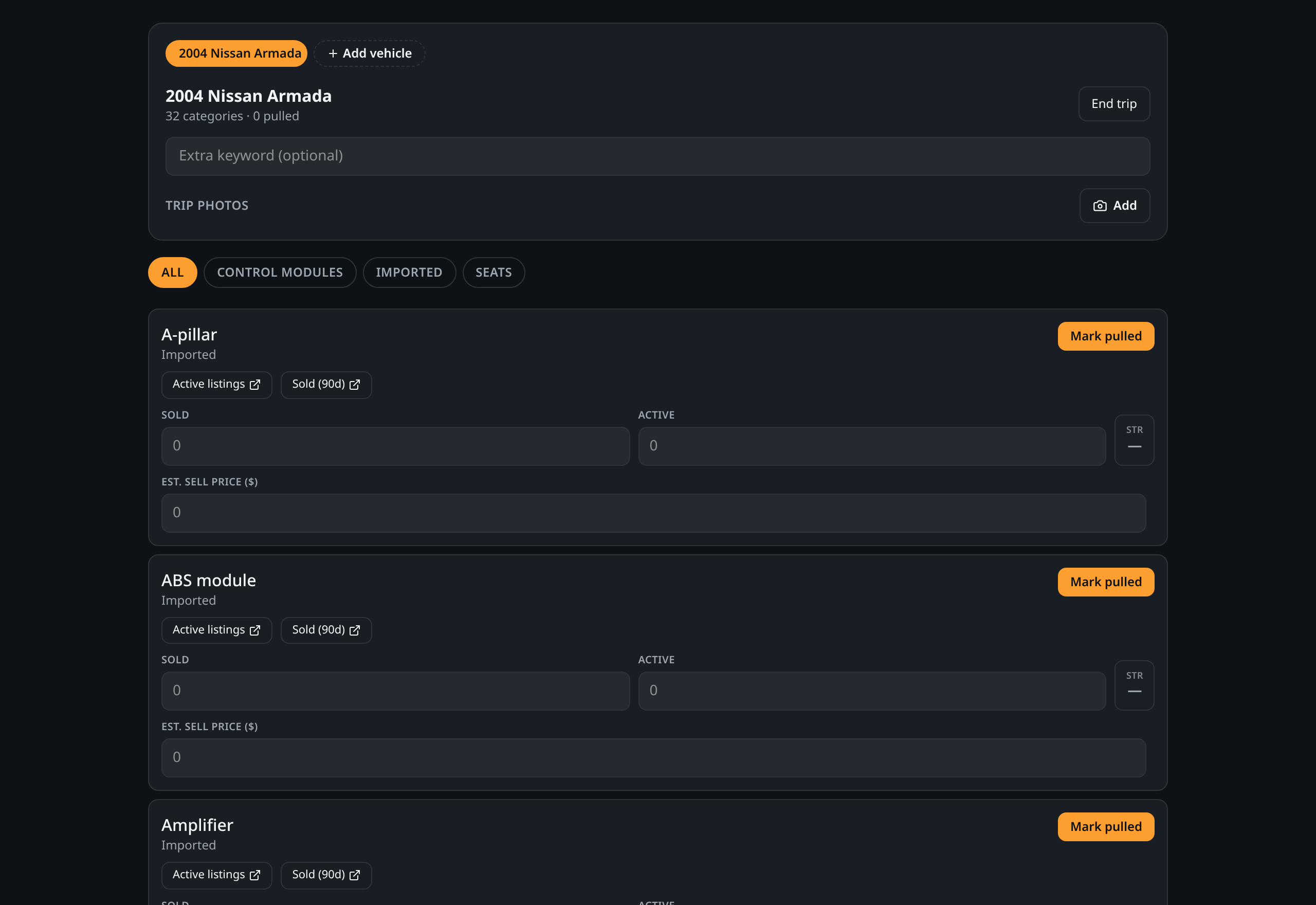
Tap Vehicle Search and enter the vehicle year, make, and model. Add an extra keyword if you only want a specific side, color, body style, etc. You can also paste a VIN and let YardIQ decode it for you.
- 2
Choose the part categories you want to search. By default every category is selected, but you can narrow it down to just the parts you care about.
- 3
Tap Start vehicle search. YardIQ builds one-tap links for every part category scoped to that vehicle. Tap Auto-count to fill active listings and average sold prices automatically.
- 4
Tap the Active and Sold links for each category. eBay's recent changes require a signed-in session for completed-listing data, so type the sold count you see into the Sold field. We save your manual entries for 90 days.
- 5
YardIQ shows a Pull / Maybe / Skip suggestion based on sell-through. Sort the list by sell-through or average sold price.
- 6
Tap the pull decision, add photos from your camera or photo library, and save the trip when you're done. You can also upload a CSV or Excel list of cars to start a multi-vehicle trip.
Tip: If you have a lot of cars to run, upload a car list at the start of the trip. Year, make, and model are required; an optional keyword is fine too.
VIN decoder + fitment
- 1
On the vehicle search screen, paste a VIN into the VIN field and tap Decode.
- 2
YardIQ fills in the year, make, model, trim, engine, body style, and drive type when the data is available.
- 3
When you later create an eBay listing from a pulled part, YardIQ can include the decoded compatible vehicles as fitment data.
Tip: VIN decoding works best on US-market vehicles after 1980. Older or non-US vehicles may need manual entry.

Track inventory
- 1
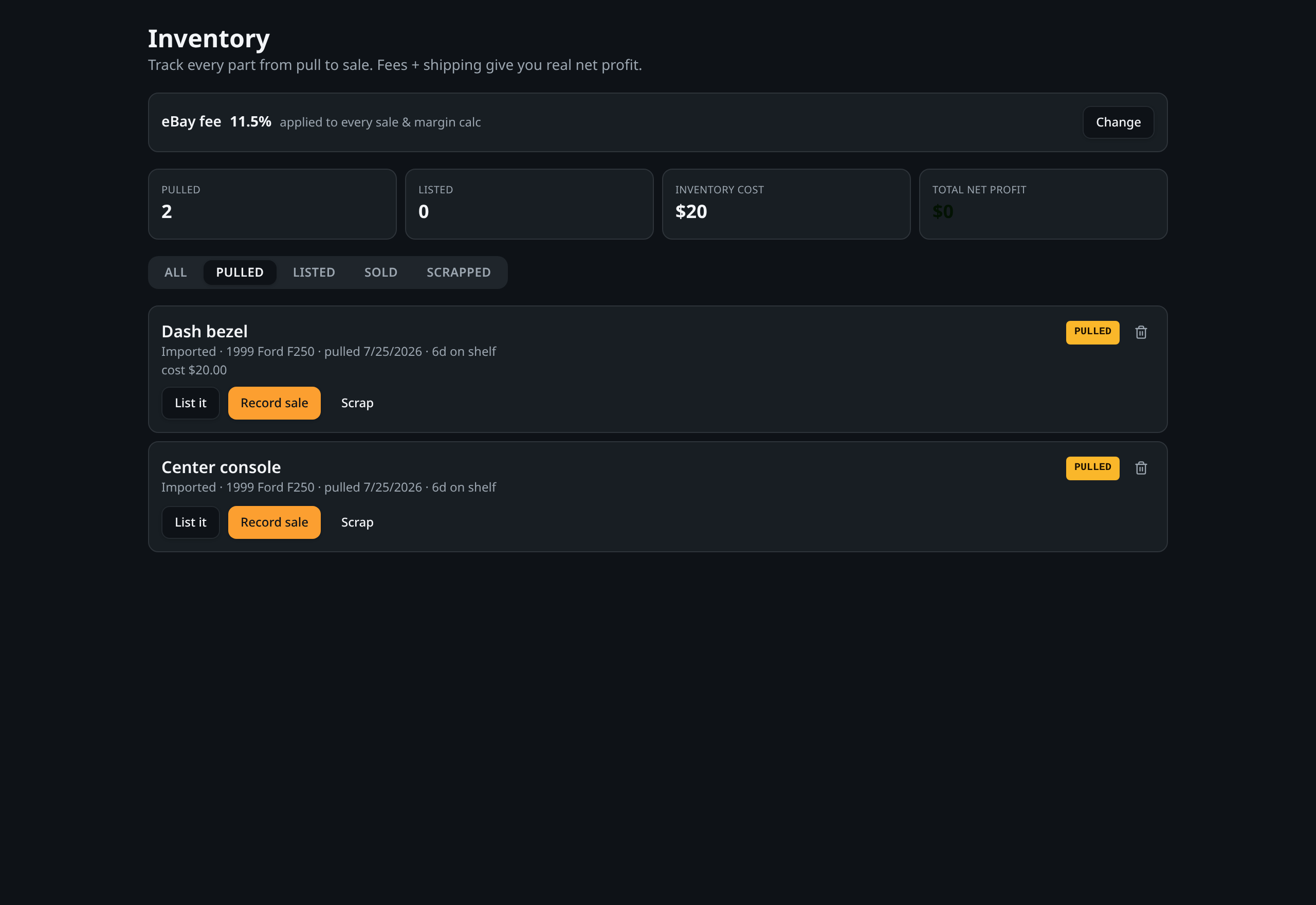
Every part you mark as Pull on a vehicle search lands in Inventory with status Pulled.
- 2
Open an item to add cost, pull fee, location, and photos. Change status to Listed when it's live for sale.
- 3
When the part sells, tap Record sale, enter the sold price, and YardIQ calculates net profit after fees.
- 4
Use the status filter to see what's still pulled, listed, sold, or scrapped. You can also bulk-import your own active eBay listings from My eBay Listings.
Tip: Premium users can export inventory to Excel with embedded photos and inventory-aging highlights.
Plans & appearance
- 1
YardIQ is one simple plan: $14.99/month or $150/year. It includes unlimited vehicle searches, 50 auto-counted vehicles each month, inventory, pull planning, and exports.
- 2
Open Plans & Usage to see your current subscription, billing, and usage.
- 3
Use the sun/moon toggle in the app header to switch between light and dark mode. The default is a clean light theme.
Tip: Yearly billing saves you about $30 over the monthly option.

Ready to try it?
Sign up free and run your first vehicle search. No card required.